@HomeTechnologies

@Home · IQ Panel 4

The panel guide.

Arm stay, arm away, disarm, and what the screen is telling you. The code is the one set at install. If the screen will not come back, call us. Leave the battery in the panel.
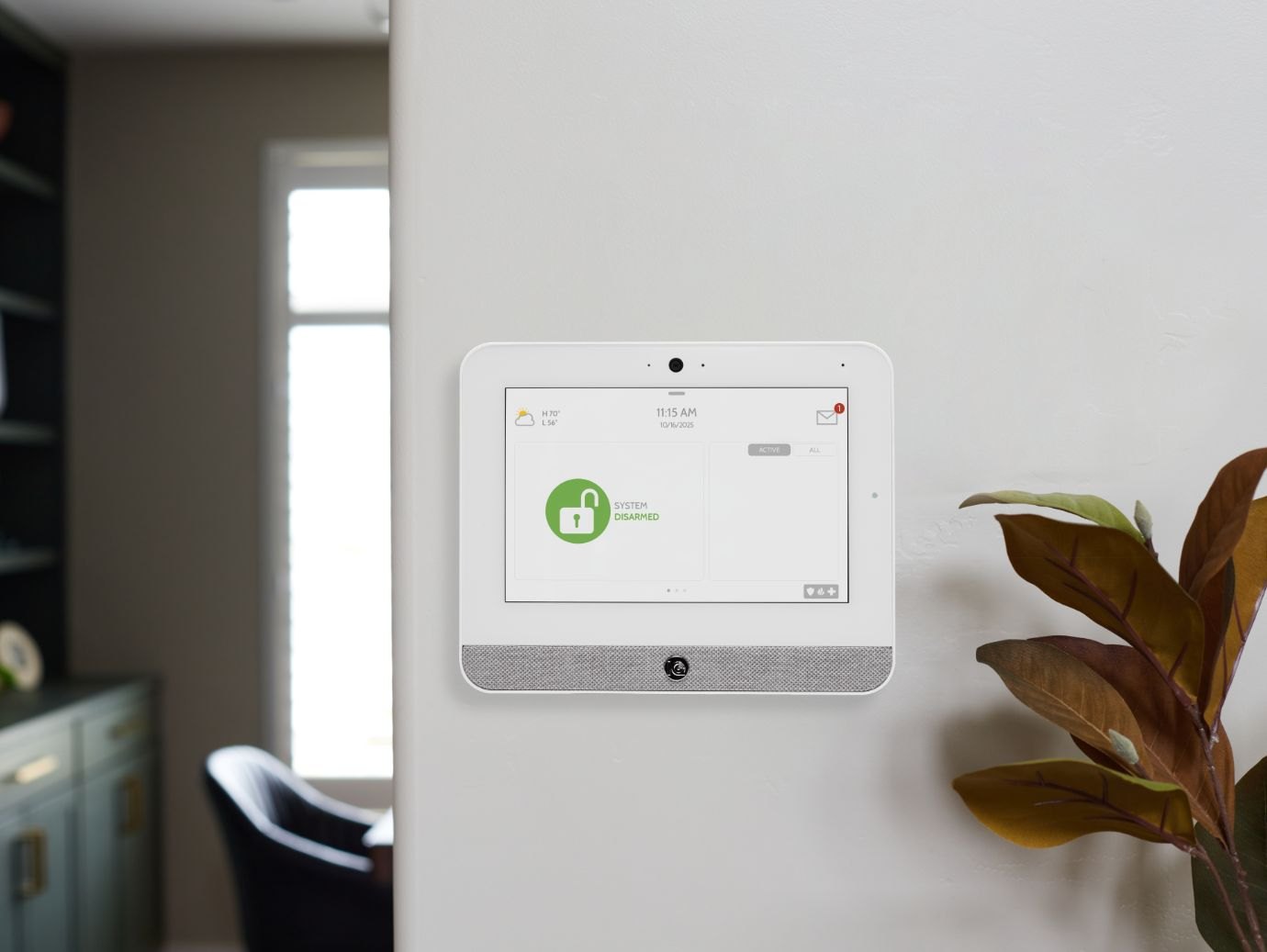
A white IQ Panel 4 on a light wall, the screen showing the system is disarmed

Arm away

Use this when you are leaving. Tap the lock, then Arm Away, and go before the exit delay ends.
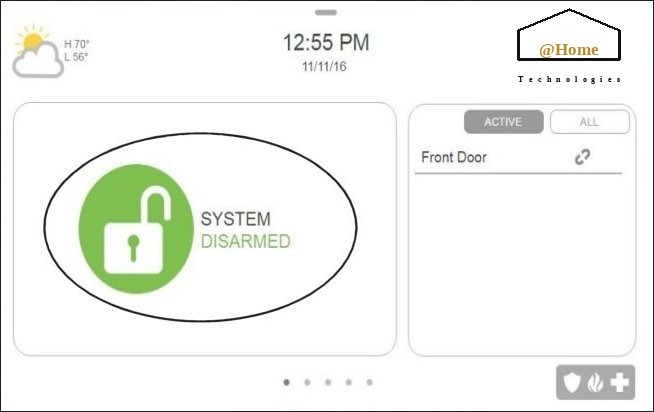
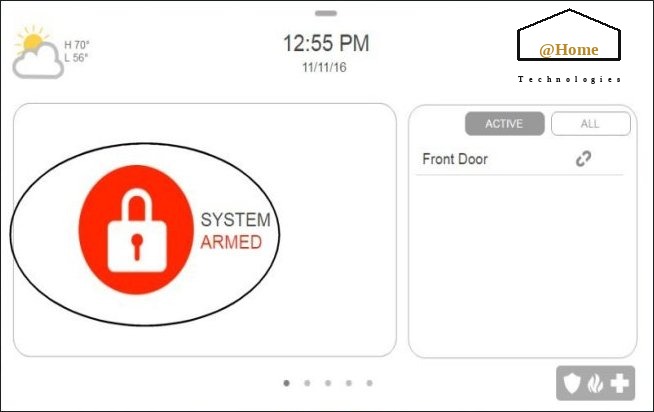
IQ Panel home screen with the lock
Tap the lock.
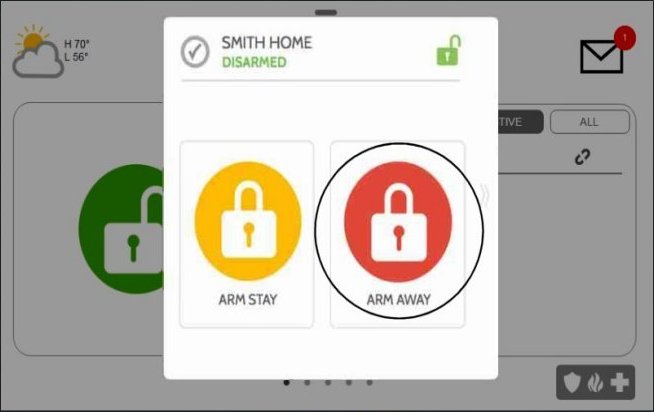
Arm Away button on the IQ Panel
Tap Arm Away.
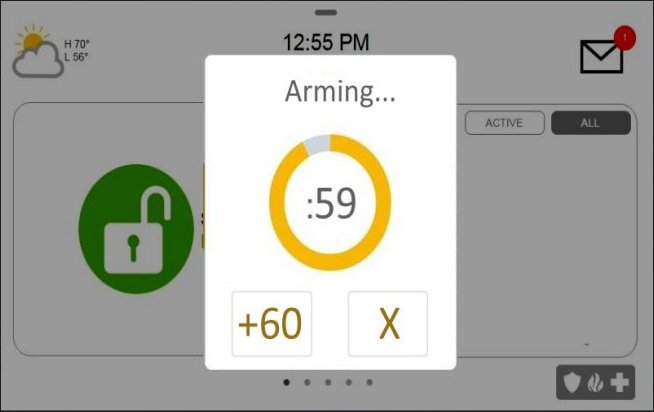
Exit delay counting down on the IQ Panel
Leave while it counts down.
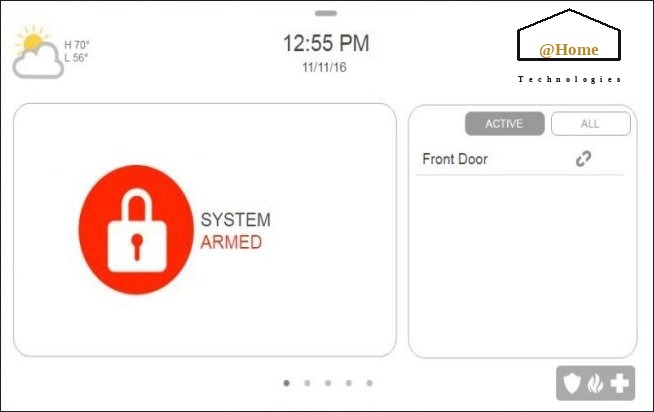
IQ Panel showing the system is armed away
The panel shows Armed Away.

Arm stay

Use this when someone is staying in. The doors and windows are on. You can still move through the house.
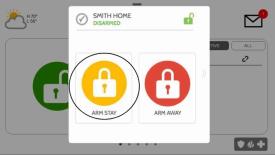
Arm Stay button on the IQ Panel
Tap the lock, then Arm Stay.
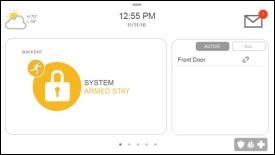
IQ Panel showing Armed Stay
The panel shows Armed Stay.

Disarm

Your user code silences an alarm that is already sounding. It is the code set at install.
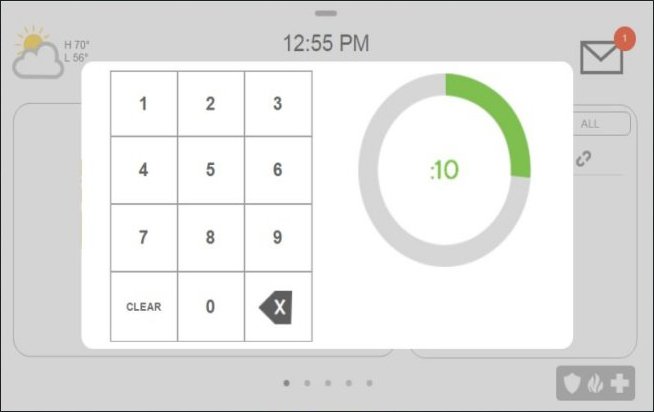
Code keypad on the IQ Panel
Armed away: enter your code when you come in.
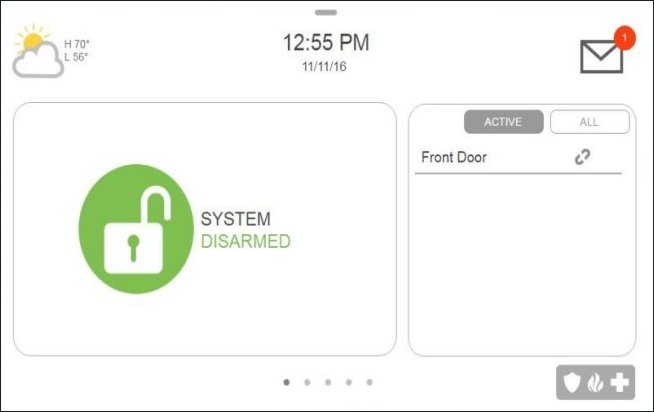
IQ Panel showing the system is disarmed
The panel shows Disarmed.
IQ Panel home screen before disarming stay
Armed stay: tap the lock first.
Enter the user code to disarm stay
Then enter your code.

What is open

Tap the @Home mark at the top right of the screen, then Messages. Open sensors and trouble, such as a low battery, are listed there.
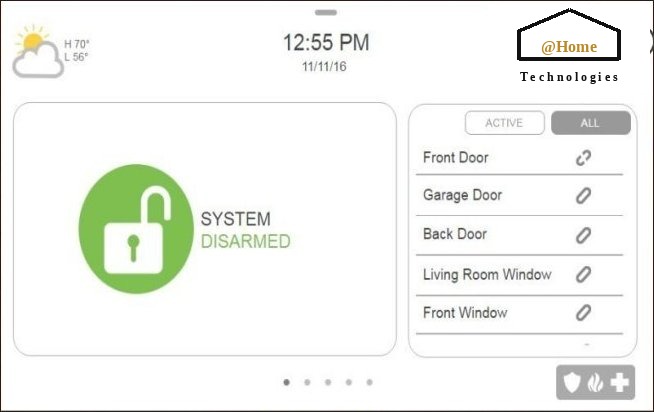
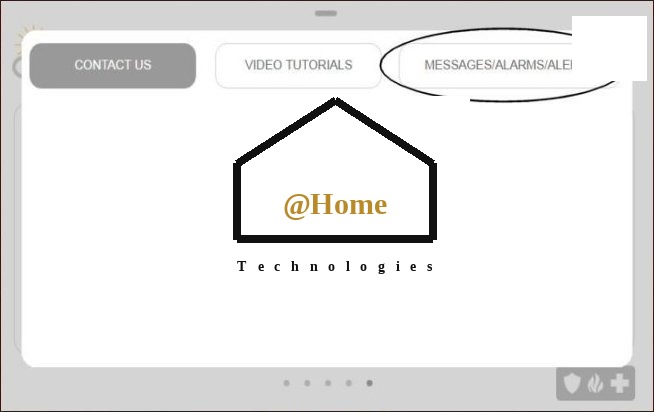
IQ Panel home screen with the @Home mark at the top right
Tap the @Home mark.
IQ Panel menu with Messages
Open Messages.
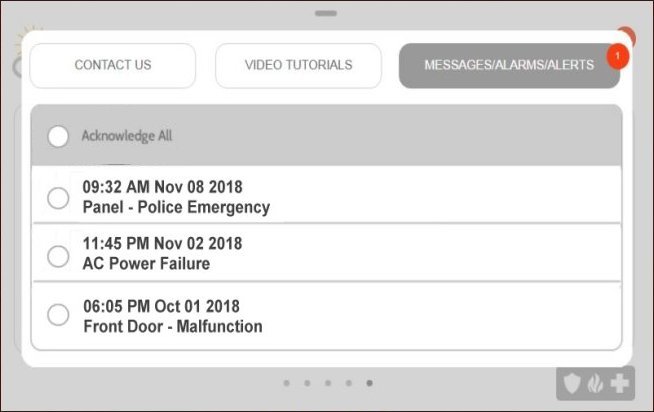
IQ Panel messages list
Open sensors and trouble are listed here.
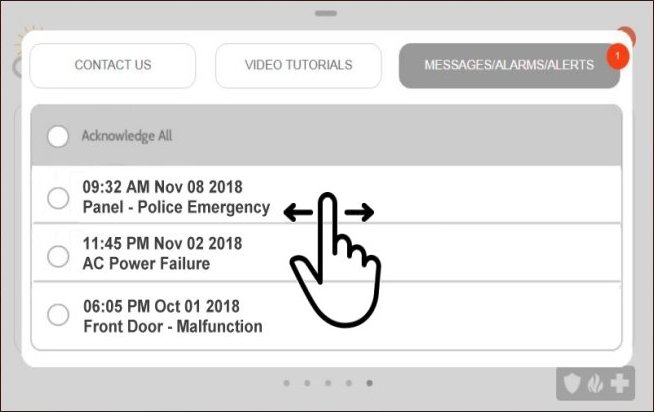
IQ Panel alerts list
Alerts are on the next list. Swipe to leave.

The sensors

The same doors also sit on the right side of the home screen.
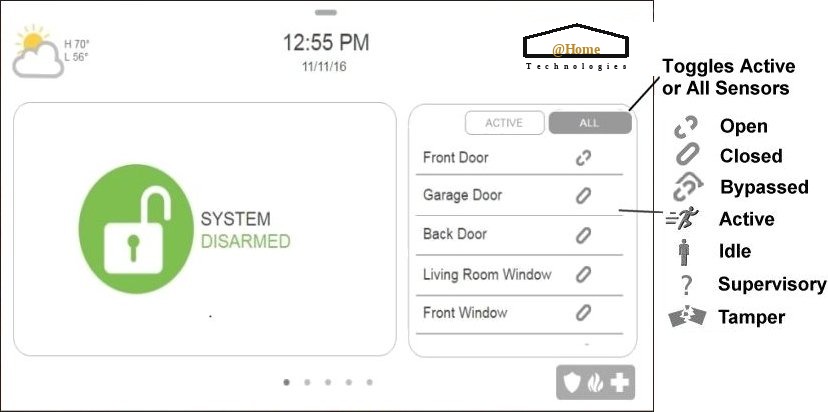
IQ Panel home screen with sensor status on the right
Green is closed. A trouble shows in the list.
Request a consult